
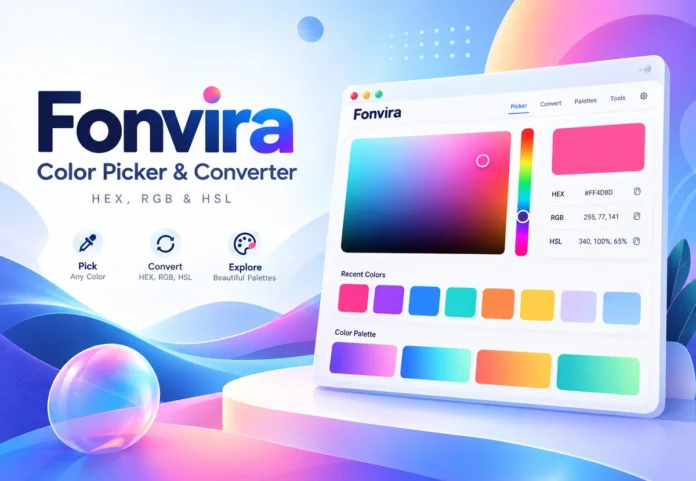

Fonvira is a free online color picker that shows HEX, RGB, and HSL values for the same color. You can choose a shade, view it instantly, and copy a code for your website or design project. It runs in your browser without requiring an account, subscription, or download. That makes it useful when you need a precise color value but do not want to open a full design program.
Imagine finding the perfect teal for a website button, then discovering your developer needs an RGB value instead of a HEX code. Fonvira handles that conversion so both of you can work with the same shade. It also helps beginners see how color codes relate to actual colors. The tool is focused on color selection and conversion, rather than creating an entire design.
What Does Fonvira Actually Do?
Fonvira brings a color picker and a converter together on one page. Select a shade visually or enter a HEX code, and it displays the matching RGB and HSL values. Its live preview changes with your selection, making it easier to spot an accidental choice. Copy controls let you transfer the values into a stylesheet, website editor, or graphics application.
Main Features of the Fonvira Color Picker
Visual Color Selection and Instant Preview
The picker lets you explore colors without memorizing six-character codes. You might start with green and adjust it until it feels right for a gardening website or environmental campaign. The preview shows the selected shade immediately, so you can compare it with your idea. Remember that a small color swatch cannot show how the shade will look behind real text or next to a photograph.
HEX, RGB, and HSL Explained Simply
HEX for Website Colors
A HEX code usually starts with # and contains six characters that describe amounts of red, green, and blue. For example, #0F766E represents a dark teal, while #FFFFFF represents white. HEX is easy to save in brand guidelines and paste into CSS or website theme settings. Keep the leading hash symbol when the destination field expects a complete HEX color.
RGB for Individual Color Channels
RGB stands for red, green, and blue, with each channel commonly using a number from 0 to 255. The teal #0F766E becomes rgb(15, 118, 110), which describes exactly the same color. Developers often encounter RGB in styling code, JavaScript graphics, and canvas work. RGB also has CSS forms that support transparency, but Fonvira’s basic converter should not be mistaken for a dedicated opacity editor.
HSL for Exploring Related Shades
HSL stands for hue, saturation, and lightness. Hue marks a position around a color wheel, saturation describes intensity, and lightness runs from dark to light within that model. Our teal is approximately hsl(175, 77%, 26%), with small rounding differences possible. HSL is helpful when experimenting with a softer accent or darker button state, but equal lightness percentages do not always look equally bright.
How to Use Fonvira Step by Step
Open Fonvira in your browser and find the color picker on its homepage. Choose a color with the visual control or type a known six-digit HEX value into the input. Look at the preview and compare the HEX, RGB, and HSL values that appear. If you are matching an existing brand, start with its approved code instead of guessing the color by eye.
Next, copy the format that matches the place where you plan to use it. Paste it into your stylesheet, website editor, or another program that accepts that notation. If an input rejects your value, check for missing characters, extra spaces, or a format the application does not support. Verify the result in the finished page because surrounding colors and screen settings can change how it appears.
A Real Example: Using Fonvira in CSS
Suppose a small business chooses #0F766E for its main website buttons. After checking that choice, the developer can save it as a CSS variable: :root { –brand-primary: #0F766E; }. A button can then use background-color: var(–brand-primary); instead of repeating the HEX code in multiple places. If the brand color changes later, updating one variable can update every element that uses it.
White text against this particular teal has a calculated contrast ratio of about 5.47:1, which meets the usual WCAG AA requirement for normal text. Black text on the same teal reaches only about 3.84:1 and misses that requirement. These are calculations for the example colors, not measurements provided by Fonvira. You still need to check hover styles, focus indicators, disabled states, and nearby background colors separately.
Who Can Benefit From Fonvira?
Web developers can translate a designer’s HEX code into a format needed for CSS or JavaScript. Graphic designers can pass exact color values to teammates rather than sending screenshots of similar-looking shades. Bloggers and small business owners can update a theme’s button or heading colors without buying design software. Beginners learning HTML and CSS can use the live preview to understand what different color values represent.
Check Accessibility Before Publishing
A color can look attractive and still make a website difficult to read. WCAG 2.2 generally calls for contrast of at least 4.5:1 for normal text and 3:1 for qualifying large text at Level AA. A dedicated contrast checker can test your text and background colors together. Fonvira provides the values needed for that check, but its advertised features do not include a complete accessibility audit.
Also avoid using color as the only way to communicate a message. A form that marks errors only with red borders may confuse people who struggle to distinguish certain colors. Add a clear error message and an icon, then inspect the page on a phone and with keyboard navigation. Good color choices need to work in real layouts, not only in a picker.
Is Fonvira Free, Safe, and Private?
Fonvira says its color processing happens locally in your browser, so the values you enter are not sent to its servers for conversion. Its published terms allow personal and commercial use of the tool and its output. You do not need to provide an email address to use the basic picker. Those are useful features when working on ordinary design tasks.
Local conversion does not mean the website has no contact with outside services. Its privacy policy describes possible hosting logs, necessary Cloudflare cookies, and Google Fonts requests that expose an IP address to Google. The contact form also uses a separate service to deliver messages. If you work with sensitive information, review the current privacy policy rather than assuming any online tool is completely offline.
What Fonvira Cannot Do
Fonvira focuses on picking colors, converting codes, previewing shades, and copying values. Its published feature list does not promise automatic palettes, sampling colors from uploaded photos, teamwork libraries, or built-in contrast measurements. If you want to match a logo image, first sample its color with an image editor and then convert the resulting HEX code. Likewise, choose a dedicated accessibility tool when you need verified contrast results.
A matching HEX value also does not guarantee that a color looks identical everywhere. Screen brightness, display settings, and nearby colors change your perception of a shade. Printing adds another complication because ink and paper do not reproduce screen colors in exactly the same way. For brochures and packaging, work with a print-ready color specification and approve a physical proof.
Common Mistakes and Quick Fixes
If a copied color does not work, inspect the code before blaming the converter. A standard six-digit HEX value needs six digits after #, using only 0 through 9 and A through F. Applications differ in their support for shorthand HEX and transparency. If copying fails, select the visible code and copy it manually.
A Simple Way to Keep Colors Consistent
Make a short record of your primary color, accent, background, and text colors. Save the approved HEX values and note which website elements use each one. Use Fonvira to get matching RGB or HSL values when another application needs them. Recheck text contrast whenever you change a background, button state, or other important pairing.
Conclusion
Fonvira makes choosing and converting colors simple for anyone working on websites, graphics, or digital projects. Its easy-to-use color picker, instant HEX, RGB, and HSL conversions, and live previews help you find accurate colors without complicated software.
Whether you are a beginner learning color codes or a designer working on a website, Fonvira can save time and keep your colors consistent. By combining it with proper contrast checks and thoughtful color choices, you can create designs that look attractive and remain easy to use.
Frequently Asked Questions
What is Fonvira used for?
Fonvira helps you choose a color and convert it between HEX, RGB, and HSL. You can preview the shade immediately. Copy its code into compatible design software or CSS.
Is Fonvira free for business use?
Yes, Fonvira’s published terms allow personal and commercial use. You do not need an account or paid plan. The site’s normal terms still apply.
Can I use Fonvira on my phone?
Yes, Fonvira works in mobile browsers as well as desktop browsers. Open its website and choose a color. You do not need to install an app.
Can Fonvira extract a color from an image?
Fonvira’s advertised features do not include sampling pixels from an uploaded image. Use an image color picker first. Then paste the resulting HEX value into Fonvira.
Does Fonvira automatically test color contrast?
No built-in contrast measurement is listed among Fonvira’s core features. Copy your foreground and background values. Check them together using a dedicated WCAG contrast checker.
Does Fonvira save my colors?
Fonvira says it processes color values locally in your browser. It does not claim to store your chosen colors on its servers. Website infrastructure may still receive requests.
Why can HSL values change after conversion?
HSL commonly uses rounded percentages and degrees. Converting those rounded figures back into RGB can change a channel slightly. Keep the original HEX code as your reference.