
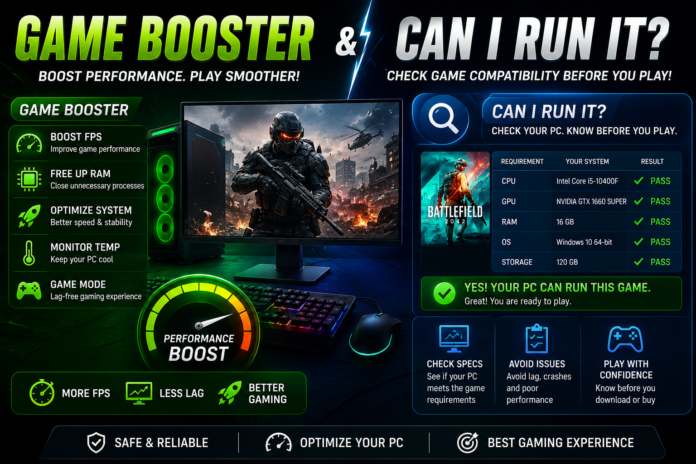

PC gaming is more enjoyable when games run smoothly, load quickly, and respond without unnecessary delays. However, not every computer can handle every game at its highest settings. Before downloading a large game or purchasing a new title, many users ask an important question: Can I run it?
At the same time, gamers often look for a reliable Game Booster to improve performance and reduce lag. These two tools serve different purposes, but understanding how they work can help you make better decisions about your gaming setup. This guide explains how to check game requirements, optimize your PC, and choose the right approach for a smoother gaming experience.
What Is a Game Booster?
A Game Booster is a software utility designed to help prepare a computer for gaming. Depending on its features, it may close selected background applications, manage startup programs, provide performance monitoring, or recommend system settings that reduce unnecessary resource usage.
When you launch a demanding game, your computer must manage several tasks simultaneously. The processor handles calculations, the graphics card renders images, and system memory stores information needed by active applications. If other programs consume too many resources, performance may become less consistent.
A Game Booster can help reduce this competition on some systems. However, it cannot guarantee higher frame rates on every computer, particularly when the main limitation is outdated hardware or an unsupported game.
What Does “Can I Run It” Mean?
The phrase Can I Run It refers to checking whether your computer meets the requirements for a particular game. It is also associated with online game compatibility-checking services that compare a computer’s specifications with a game’s minimum and recommended requirements.
Before installing a game, you should review several hardware components:
- Processor (CPU): Handles game logic, calculations, and other processing tasks.
- Graphics card (GPU): Renders the game’s visual effects, textures, and environments.
- RAM: Provides temporary memory for the operating system and running applications.
- Storage: Determines how much space you need and can influence loading times.
- Operating system: Must be compatible with the game’s supported Windows version or other platform.
Checking these components helps you understand whether a game is likely to run properly before you spend time downloading it.
How to Check Whether Your PC Can Run a Game
You can check your computer’s gaming compatibility by following a few simple steps.
Step 1: Find the Game’s System Requirements
Visit the game’s official store page or developer website. Look for the minimum and recommended system requirements.
Minimum requirements generally describe the hardware needed to run a game at a basic supported level. Recommended requirements indicate a more suitable configuration for a better experience, although actual performance still depends on settings and resolution.
Step 2: Check Your PC Specifications
On Windows, open Settings and navigate to System, then About, to review your processor and installed RAM.
To inspect your graphics hardware, open Task Manager and select the Performance tab, or search for System Information and use the DirectX Diagnostic Tool when appropriate.
Record your CPU model, GPU model, RAM capacity, Windows version, and available storage space.
Step 3: Compare Your Hardware
Compare your computer’s specifications with the game’s published requirements. Pay particular attention to the graphics card and processor, because these can significantly affect performance.
Do not assume that a computer can run a game smoothly simply because it has enough storage space. Storage capacity is only one part of compatibility.
Step 4: Use a Compatibility Checker
An online service such as the well-known Can You RUN It website may help compare your computer’s hardware against supported game requirements. Review the service’s current instructions and compatibility information before using it.
You can also perform the comparison manually using official specifications. Manual checking is especially useful if an automated tool does not recognize your hardware correctly.
Step 5: Consider Your Desired Performance
Meeting minimum requirements does not necessarily mean that a game will run at 60 FPS or higher. Your target resolution, graphics settings, cooling system, and driver version can all affect results.
If you want smoother gameplay, compare your hardware with the recommended requirements and look for independent performance tests of your exact CPU and GPU combination.
How a Game Booster Can Help After Compatibility Checking
Once you know that your computer meets a game’s requirements, a Game Booster may help you manage system resources more effectively.
Reduce Background Applications: Closing unnecessary applications can free up CPU time and memory.
Review Startup Programs: Disabling unneeded startup applications may reduce background activity when Windows launches.
Monitor Performance: Some utilities display CPU usage, RAM consumption, temperatures, and frame rates, helping you identify potential bottlenecks.
Simplify Gaming Preparation: Certain boosters offer shortcuts or profiles that make it easier to prepare your computer before launching a game.
The results vary from system to system. If your computer already runs efficiently, a Game Booster may provide little noticeable improvement.
Best Ways to Improve Gaming Performance
You do not always need additional software to improve gameplay. A few sensible changes can make a difference.
Update Graphics Drivers
Download compatible graphics drivers from the official NVIDIA, AMD, Intel, or computer manufacturer’s website. Driver updates may fix bugs and improve compatibility with certain games.
Adjust In-Game Graphics Settings
If your game struggles to maintain a stable frame rate, reduce demanding options such as shadows, reflections, and ray tracing. Lowering resolution can also reduce the workload on your graphics card.
Enable Windows Game Mode
Windows includes Game Mode settings intended to support gaming. You can find this option under Settings and Gaming. Its benefits depend on your system and background workload.
Keep Your PC Cool
Excessive heat may cause your processor or graphics card to reduce performance. Keep ventilation areas clear and ensure that fans and cooling components work correctly.
Maintain Enough Free Storage
Games require sufficient space for installation and updates. Keeping your drive organized also makes it easier to manage new games, recordings, and other files.
Game Booster vs. Can I Run It
These tools address different gaming questions.
A Game Booster focuses on managing selected system resources and preparing your computer for gaming. A Can I Run It compatibility checker helps determine whether your hardware meets a game’s requirements.
For example, if a game does not meet your GPU’s minimum requirements, a booster cannot transform your graphics card into a more powerful model. However, if your computer meets the requirements but unnecessary background applications are consuming resources, optimizing those applications may help.
Using both approaches can therefore provide a clearer picture of your computer’s capabilities.
Common Mistakes to Avoid
Avoid installing unknown optimization programs that promise dramatic FPS increases without explaining how they work. Some may contain unwanted software or change important Windows settings.
Do not disable essential system services just to free up memory. Avoid downloading unofficial game files or drivers, and never assume that meeting minimum requirements guarantees smooth gameplay.
Instead, verify your specifications, use trusted software, and make one performance adjustment at a time.
Conclusion
A Game Booster and a Can I Run It compatibility checker can help you approach PC gaming more confidently. A compatibility check shows whether your computer meets a game’s hardware requirements, while a Game Booster may help reduce unnecessary background activity and simplify performance management.
For the best results, compare your hardware with official game requirements, install suitable graphics drivers, adjust demanding settings, and maintain proper cooling. These practical steps can help you understand your PC’s limitations and enjoy a more reliable gaming experience without spending money on unnecessary upgrades or software.