
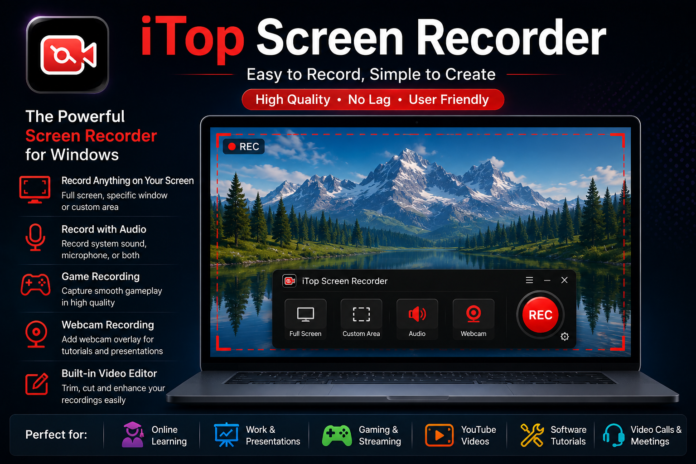

Screen recording has become an important part of modern digital life. From creating educational tutorials to recording gameplay and preparing professional presentations, a reliable screen recorder can make many tasks easier. Instead of explaining every step through text, you can capture your screen and show exactly what you want others to understand.
iTop Screen Recorder is a desktop recording application that users can consider for capturing on-screen activities. Whether you are a student, teacher, gamer, or content creator, understanding its recording capabilities can help you decide whether it suits your needs.
In this guide, we will explore screen recording features, practical benefits, setup instructions, and useful tips for creating clear, professional-looking videos.
What Is iTop Screen Recorder?
iTop Screen Recorder is software designed to record activities displayed on a computer screen. Depending on the version and available features, users may be able to capture desktop activity, individual windows, selected screen regions, and gameplay.
A screen recorder is useful whenever visual instructions are more effective than written explanations. For example, a teacher can demonstrate a software application, a student can record a digital lesson, and a technical support professional can show how an error occurs.
Video recording can also help content creators prepare product demonstrations, software reviews, and instructional videos for online audiences.
Before downloading iTop Screen Recorder check the official website for supported operating systems, current features, system requirements, and licensing information.
Key Features of a Screen Recorder
The usefulness of a screen recorder depends on the features available in its particular edition. Here are some important capabilities to consider when evaluating iTop Screen Recorder.
1. Full-Screen and Selected-Area Recording
A useful screen recorder should provide flexible recording options. Full-screen recording captures the entire desktop, while selected-area recording focuses on a specific part of the screen.
Recording a single application window can be helpful when creating software tutorials or demonstrations. It keeps the video focused and avoids showing unrelated desktop content.
Choose the recording area before starting so your viewers can clearly see the information that matters.
2. Microphone and System Audio
Audio can make a tutorial or presentation easier to follow. Depending on the available settings, recording software may support microphone input, computer audio, or both.
Microphone recording is useful for narration and commentary. System audio can capture sounds produced by games, applications, and other supported programs.
For better results, test your microphone before recording. Keep the input volume at a comfortable level and minimize background noise to improve clarity.
3. Gameplay Recording
Gamers often use a screen recorder to capture matches, walkthroughs, tutorials, and memorable moments. These recordings can later be edited into highlights or shared with an online community.
Gaming performance depends on the computer’s hardware, game settings, and recording configuration. If your game becomes slower during recording, consider lowering graphics settings or reducing the recording resolution.
Check the application’s current specifications to confirm which frame rates, resolutions, and gameplay recording options are supported.
4. Webcam Recording
Some screen recording workflows benefit from a webcam overlay. This feature can show the presenter while the main recording displays a desktop, presentation, or application.
Webcam recording is especially useful for educational videos, software demonstrations, and commentary. If you plan to use this feature, make sure your camera is connected and functioning before starting.
5. Saving and Managing Videos
After recording, you need a convenient way to save and review your video. Check which output formats and quality settings are available in your edition of iTop screen recorder.
Choose a suitable recording quality for your intended audience. Higher-quality videos can preserve more detail but usually require additional storage space.
Organizing your recordings into clearly named folders can also make future editing and sharing easier.
How to Use iTop Screen Recorder
Getting started with a screen recorder is usually straightforward. Although the exact interface may change between versions, these general steps provide a useful starting point.
Step 1: Download the Application
Visit the official iTop website and locate the screen recorder download page. Verify that the software is compatible with your operating system before downloading it.
Step 2: Install and Open the Software
Follow the installation instructions and launch the application. Review its recording controls and available settings before beginning your first session.
Step 3: Select Your Recording Area
Choose full-screen recording, a specific window, or a custom region if supported. Make sure the important information is visible and positioned correctly.
Step 4: Configure Audio Settings
Select the appropriate microphone and system audio options. Make a short test recording to check whether your voice and other required sounds are captured clearly.
Step 5: Start Recording
Begin the recording and perform the actions you want to demonstrate. Close unnecessary applications and disable distracting notifications when appropriate.
Step 6: Stop and Review
Stop the recording and open the saved video. Check its picture quality, audio, and completeness before sharing or editing it.
Benefits of Using iTop Screen Recorder
A screen recorder can support a wide range of everyday tasks.
Education and Learning: Students can save demonstrations for revision, while teachers can prepare recorded lessons that learners can revisit later.
Professional Presentations: Employees can explain processes, demonstrate software features, and share visual instructions with colleagues.
Gaming Content: Players can record gameplay footage for walkthroughs, highlights, and commentary videos.
Technical Support: A video showing an error or unusual application behavior can help others understand a technical problem more quickly.
Online Content Creation: Bloggers and creators can produce tutorials, application reviews, and step-by-step guides for websites and video platforms.
These benefits make screen recording a practical option for both personal and professional use.
Tips for Better Screen Recording Quality
Even a good screen recorder needs suitable settings and preparation to produce clear results.
- Close unnecessary applications to reduce background resource usage.
- Select an appropriate resolution for your content.
- Test microphone levels before recording a long session.
- Keep your desktop organized and hide private information.
- Disable unnecessary notifications to prevent interruptions.
- Ensure that you have enough storage space for video files.
- Record a short sample to identify problems before starting the full session.
- Review your video before publishing it.
If you record demanding games, monitor CPU and GPU usage. Reducing the game’s graphics quality or recording resolution may help when your system struggles to handle both activities simultaneously.
Is iTop Screen Recorder Suitable for Beginners?
A beginner-friendly screen recorder should have understandable controls, straightforward recording settings, and a convenient way to save videos.
iTop screen recorder may be worth considering if you want to capture desktop activities without building a complicated recording workflow. However, your ideal choice depends on the features you need, your computer’s specifications, and your budget.
Review the current free and paid editions carefully because recording limits and available tools can vary. If you only need occasional desktop recordings, a built-in Windows recording option may also be sufficient.
Is Screen Recording Safe?
Screen recording software should always be downloaded from a trusted source. Use the official website when possible, review installation options, and avoid unnecessary bundled applications.
Be careful when recording online meetings, private conversations, confidential documents, or copyrighted material. Obtain permission when required and make sure your recordings do not expose sensitive information.
It is also good practice to review the software’s privacy policy and understand how it handles recordings and related data.
Conclusion
iTop screen recorder is an option to explore if you need a tool for recording desktop activities, preparing tutorials, capturing presentations, or creating gameplay videos. Its suitability depends on the features available in your version and the requirements of your recording projects.
By choosing appropriate recording settings, testing your audio, keeping your computer organized, and reviewing your videos before sharing them, you can create useful screen recordings for education, work, gaming, and content creation.
Before installing any recording application, compare its features, system requirements, privacy information, and licensing options. Selecting a tool that matches your needs will help you create a smoother and more efficient recording experience.