
A video often begins with a simple idea: a product placed in an unusual setting, a character entering a new world, or a short moment that communicates a particular feeling. Turning that idea into a finished video, however, takes more than imagination. Creators need to think about visuals, movement, pacing, and how each scene connects to the next.
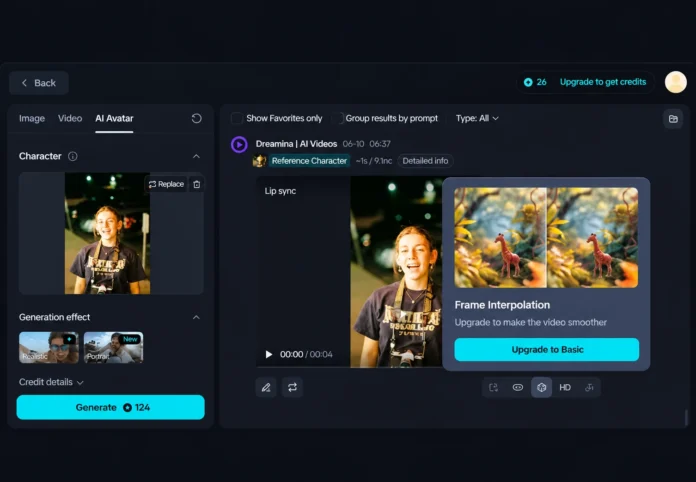
AI-powered video creation can make this process more approachable. Instead of starting with a full production setup, creators can explore visual concepts and develop short sequences from written prompts or images. The Dreamina AI video generator offers a way to experiment with these possibilities, helping users explore how a concept might look in motion before deciding how to develop it further.
Start With the Moment You Want to Show
Before opening a video creation tool, it helps to identify the central moment of the video. This is different from writing a complete script. A central moment is the single visual idea that gives the project direction. For example, a small bakery might want to show the feeling of a fresh morning. Rather than trying to explain the entire business in one video, the creator could focus on warm bread coming out of an oven, sunlight entering the shop, or a customer enjoying a quiet breakfast.
A clear starting point makes prompt writing easier. It also prevents the video from becoming a collection of unrelated images. Think about the subject, setting, mood, and action you want viewers to notice. These details provide a useful foundation for generating a scene.
Turn Descriptions Into Visual Experiments
Written prompts allow creators to describe a scene without needing to produce every visual element manually. A prompt might explain what appears in the frame, where the action takes place, the atmosphere, and the kind of movement expected. The more clearly these elements are described, the easier it is to communicate the intended direction. Consider the difference between “a beautiful garden” and “a quiet garden at sunrise, with dew on the leaves and a gentle breeze moving the flowers.” The second description gives the tool more visual information to work with.
The Dreamina AI video generator can be explored as a way to test such descriptions and see how they translate into moving visuals. The first result should be treated as an experiment rather than a final decision. It may reveal an interesting composition, suggest a different mood, or show that the original description needs more detail.
Use Reference Images to Establish a Visual Direction
Sometimes a written description is not enough to communicate the look of a scene. A reference image can help establish details such as color, composition, clothing, surroundings, or the general atmosphere. For instance, someone creating a travel-inspired video might have a photograph of a coastal village. That image can serve as a visual starting point for exploring a moving scene with a similar setting. A designer developing a product concept might use a reference to communicate the desired background or lighting.
References are especially useful when a project needs a recognizable visual identity. However, creators should use images they own or have permission to use. They should also check whether the generated result follows the important details of the reference instead of assuming that every element will be reproduced exactly.
Build a Sequence Instead of Relying on One Clip
A strong video usually communicates more than one visual moment. Even a short promotional or storytelling piece may need an opening, a central action, and a closing image. A simple three-part structure can help:
- Opening: Introduce the subject or setting so viewers understand what they are seeing.
- Main moment: Show the action, product, experience, or idea that matters most.
- Closing: End with a clear image that gives the video a sense of completion.
Imagine a short video for a plant shop. The opening could show a row of indoor plants, the main section could focus on someone choosing and watering a plant, and the final scene could show the plant in a bright home interior. Creating scenes separately can make it easier to explore different compositions and actions. When bringing them together, consider whether the lighting, colors, and overall style feel consistent. A sequence works best when each part appears to belong to the same visual story.
Review Movement and Visual Details
A generated video should be reviewed as a moving sequence, not just as a collection of attractive frames. Movement can change how viewers understand a scene. A subject may appear too quickly, an action may feel unnatural, or the camera movement may distract from the main idea. Watch the clip more than once and pay attention to a few practical details:
- Does the main subject remain easy to recognize?
- Does the movement support the purpose of the scene?
- Are important objects and background details consistent?
- Does the clip begin and end at useful moments?
- Is there anything unusual that could confuse viewers?
Small visual problems can become noticeable when a clip is used in a public-facing project. Reviewing the result before sharing it helps creators decide whether to adjust the prompt, try another generation, or use a different scene.
Know When AI Video Is the Right Choice
AI-generated video can be useful for concept exploration, creative experiments, social content, and visual storytelling. It can help individuals and small teams investigate ideas without arranging a complete filming setup for every early concept. However, it is not automatically the best choice for every project. Videos that require precise real-world demonstrations, exact product details, specific human performances, or carefully documented events may still need traditional filming or additional editing. Generated visuals should not be presented as genuine footage of events that never happened.
Creators should also consider their audience and the purpose of the content. A creative concept video may allow more visual freedom than a product tutorial where viewers need accurate information. Choosing the right approach depends on what the video is expected to communicate.
Final Thoughts
The process of making a video becomes easier to approach when a large idea is divided into clear visual moments. Starting with one scene, describing it carefully, testing reference images, and building a sequence can help creators develop a more focused result. The AI video generator provides an option for exploring written ideas and visual references through moving content. Its value depends on how thoughtfully the creator plans and reviews each result. With a clear concept and realistic expectations, AI video generation can become a useful part of a wider creative process.
Frequently Asked Questions
1. What is the Dreamina AI video generator used for?
It can be used to explore and create AI-generated video scenes from creative descriptions or visual references. Possible uses include concept development, storytelling experiments, and short promotional content.
2. Do I need video-editing experience to try AI video generation?
Not necessarily. A beginner can start with a simple scene description and learn through experimentation. Basic editing knowledge can still be helpful when arranging clips, adjusting timing, and preparing a finished video.
3. How can I get more useful results from a text prompt?
Describe the subject, setting, action, and atmosphere clearly. Avoid combining too many unrelated events in one prompt. A focused description gives the generation process a more understandable direction.
4. Can reference images help create a consistent visual style?
Yes. Reference images can communicate visual details that may be difficult to explain in words. They can help establish a direction for colors, composition, and setting, although the generated result may not match every detail exactly.
5. Should AI-generated videos be checked before publishing?
Yes. Review the visuals, movement, and overall message before sharing. Check for unusual details, misleading representations, or inconsistencies, and make sure any reference material is used with the appropriate permission.