

I understand that securing my computer does not involve conducting a one-time virus scan. Rather, I continuously think about the files I download, websites I browse, passwords I have stored, and personal documents. All these could be sources of vulnerability if ignored. I would like to have security software that combines various forms of protection and allows me to manage all of them at once.
About IObit Malware Fighter
IObit Malware Fighter is an application for Windows that is designed for detecting, blocking, and removing malware. I can feel safe with the help of the software’s scanning, online protection, browser protection, and privacy tools. The free version of the program offers basic antivirus protection, and the Pro version gives additional security functions.
Features I Find Worth Using
Triple Engine Protection for Stronger Detection
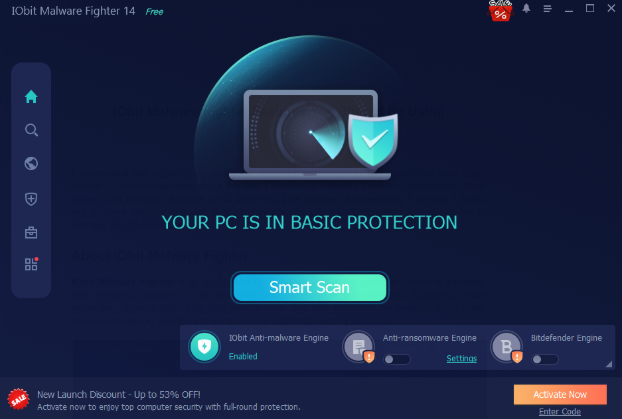
Triple Engine Protection is a very important aspect. This protection is based on the Bitdefender Engine, IObit Anti-Malware Engine, and IObit Anti-Ransomware Engine in order to protect against malware. I believe that such a combination of three engines is very important because different threats may affect different parts of my computer. These engines are specifically created to identify viruses, spyware, Trojan horses, ransomware, and other types of malware.
AI Script Guard for Emerging Threats
AI Script Guard is particularly relevant to me due to the growing use of applications powered by AI. Certain automation tasks may require scripts capable of modifying system settings, accessing certain files, or running particular commands. In this regard, I trust this option as an extra layer of protection since it looks for any suspicious dynamic scripts and attempts to identify malware before execution. I find this tool relevant when dealing with automation, but I am careful about downloading scripts from reliable resources.
Real-Time Protection and Security Guards
I would prefer the former over the latter because Real-Time Protection is constantly watching out for possible security risks and will help prevent malicious activities from compromising my PC. Another thing that I would be constantly monitoring is the nine security guards responsible for Network, File, Startup, Process, Master Boot Record, Camera, USB, Behavior, and Browser Password Guard protection.
Browser Protection and Anti-Tracking
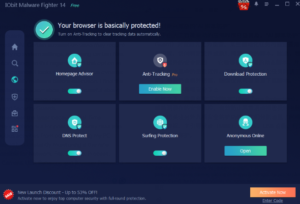
My web activities take up much of my time, and I need to keep them secure. Surfing Protection is a tool that enables me to spot phishing sites, questionable websites, and dangerous links found in my emails. What I also like is Anti-Tracking since it allows me to remove supported tracking cookies when closing my web browser. Homepage Advisor keeps track of unauthorized modifications to homepages and search engines, and Ads Block removes invasive ads.
Safe Box and Sensitive Data Protection
In addition to using passwords to lock the entire computer, I see my personal files and documents as things that need protection individually. With Safe Box, I have the capability to select particular files and folders for safekeeping through the application of a password. The other program that I feel is useful to use is Sensitive Data Protect. This is because it allows additional protection of vital information from any unauthorized access or ransomware attacks.
Browser Password Guard and Email Protection
I am excited about keeping the saved passwords secure and avoiding their exposure through any form of access that is not authorized, and the Browser Password Guard has been improved to offer more security for locally stored passwords in browsers.
Faster Scanning and Improved Startup Coverage
I prefer scans that are quick and efficient. The IObit Malware Fighter has some advantages with improved scans, where one will see an improvement of up to 30% in full scan speeds. I also consider the feature of improved startup item scanning essential, considering the fact that malware could attempt to start automatically with Windows.
How I Use IObit Malware Fighter Effectively
I adhere to the basic procedure for downloading the free antimalware, which will help me make use of all the security aspects and keep track of all the important settings.
Step 1: Download and Install the Software
I log in to the official IObit website, download the free software and after installation, I launch the application to look around the dashboard and familiarize myself with its scanning capabilities and protection.
Step 2: Select a Suitable Scan Mode
I click on the scanning part, and I go for Smart Scan when I want an instant scan of my system’s vital parts. If I want to do a complete scan, I will click on Full Scan, and this will scan my entire hard disks, but I can also go for Custom Scan.
Step 3: Review Detected Threats
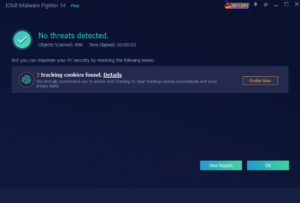
Once the scanning is done, I will take time to go through the items that have been detected. If any malicious files are found, I will adhere to the recommended action of removal or quarantine. I will avoid deleting any files myself, as some may be system files.
Step 4: Configure Real-Time Protection
Then comes reviewing the protection and enabling the active real-time protection shields. The File, Startup, Process, Behavior, and USB protection are selected for monitoring of any suspicious activity.
Step 5: Set Up Browser Protection
I check the browser protection and go through the Surfing Protection, Anti-Tracking, Download Protection, and the Browser Password Guard, ensuring that everything concerning browser compatibility is correct and enabling all the options included in my version.
Step 6: Protect My Private Files
I configure Safe Box by choosing the documents that are going to be secured and create an encryption password. Additionally, I will evaluate the choices that need to be made on the Sensitive Data Protect menu.
Step 7: Maintain Regular Security Checks
Ultimately, I incorporated computer scanning into my schedule for regular computer maintenance. I now look for things such as software updates, security alerts, and unusual activities instead of ignoring the warnings.
Who Should Use This Software
I would recommend it to you if you make use of Windows on a regular basis and need more protection against malware.
My Thought
In my opinion, the best approach to get the most out of security software would be knowing its features and customizing them according to your needs. IObit Malware Fighter has a combination of anti-malware scanning, AI Script Guard, browser safety features, and file privacy options in one place. The features that I particularly like are AI Script Guard, triple engines, and Safe Box.